Notion
Written By Musab
Last updated 9 months ago
Step 1 - Integrate Notion Workspace
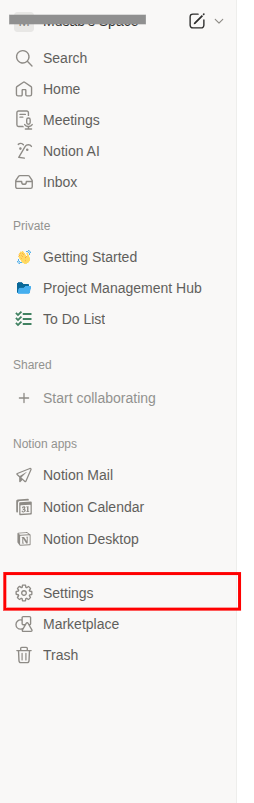
Login to your Notion account.
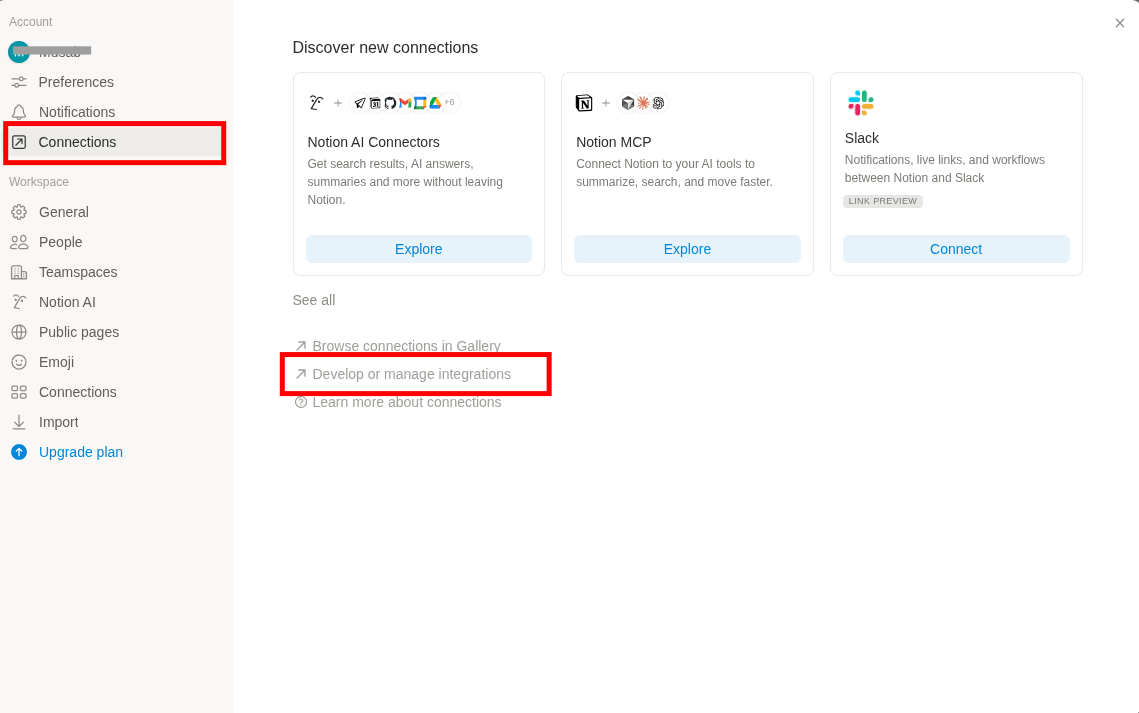
Go to Settings → Connections → Develop or manage integrations.
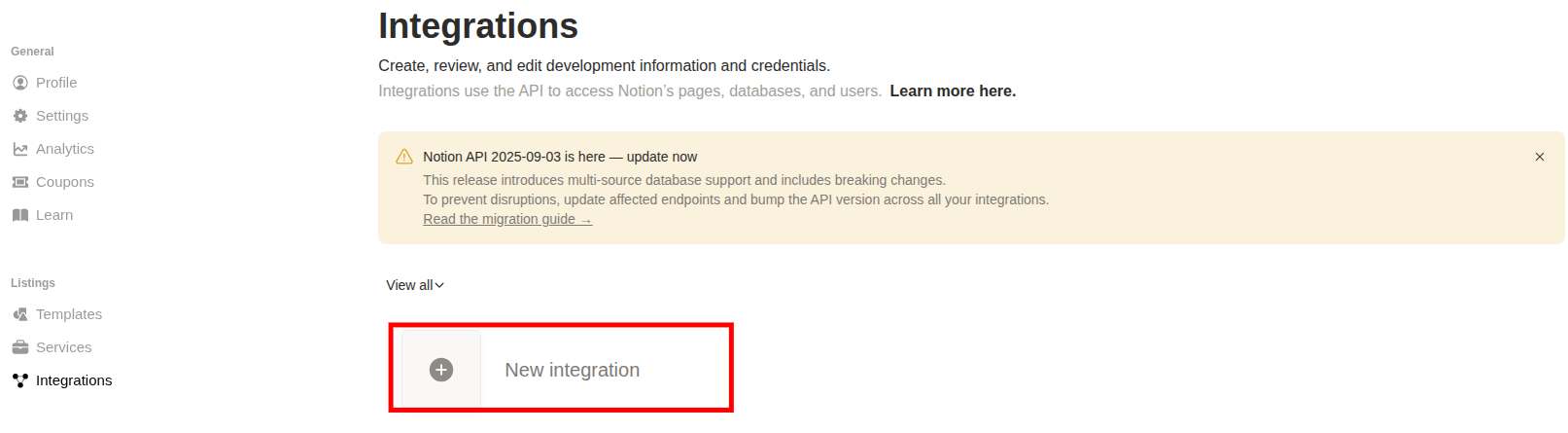
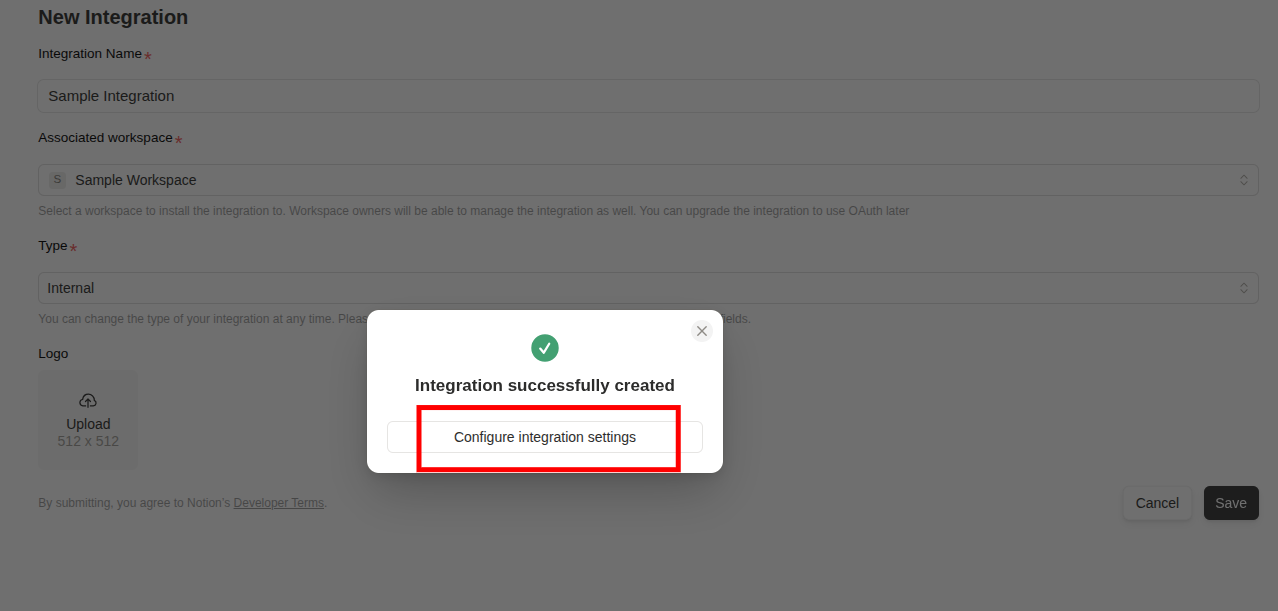
Click on New integration.
Configure your Integration:
Integration Name → Enter a suitable name to identify the integrated workspace.
Associated workspace → Select the workspace you want to integrate.
Type → Internal
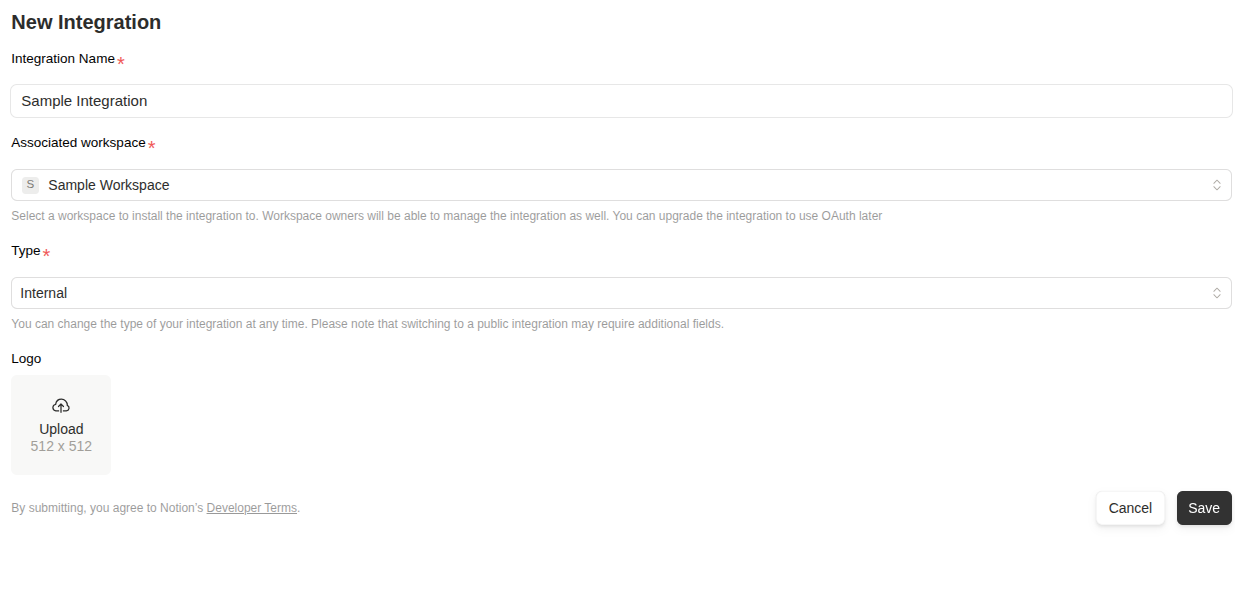
Click Save and open Configure integration settings.
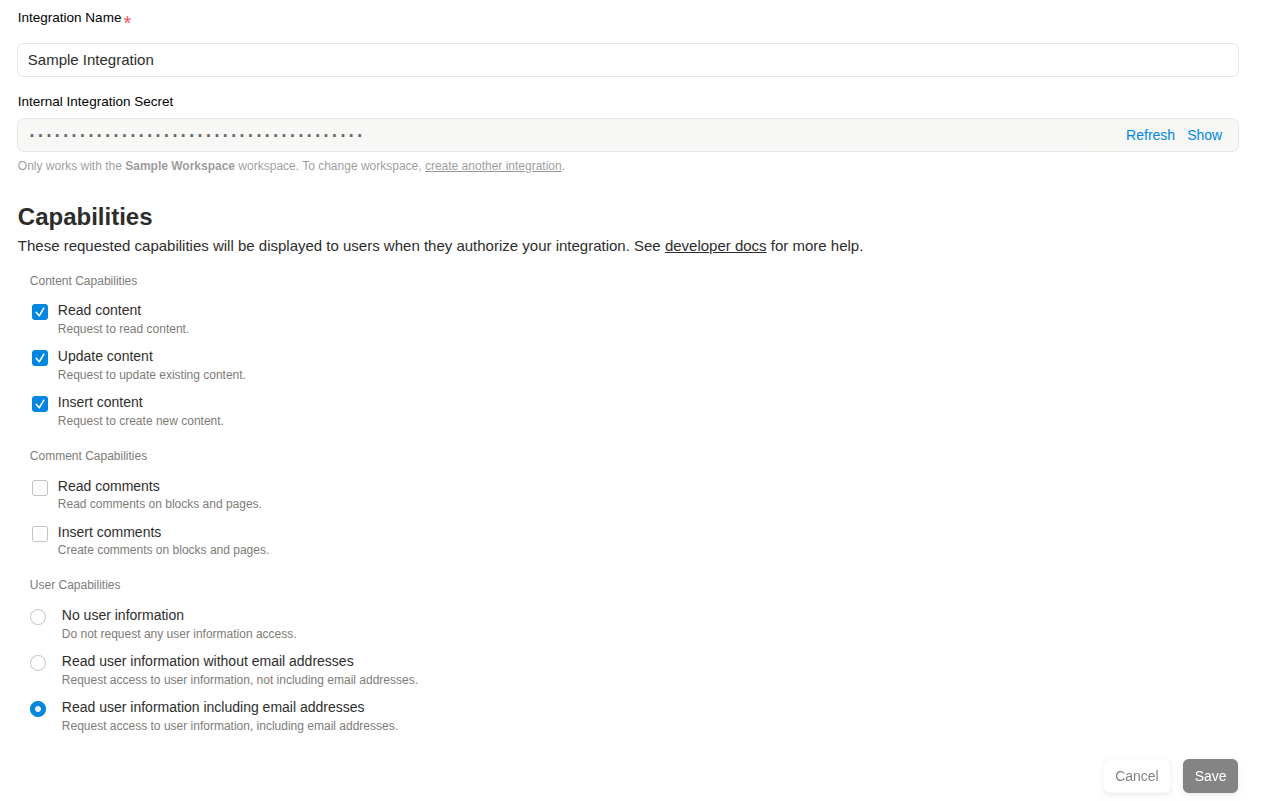
Copy the token → Internal Integration Secret from it, make sure it has the capabilities shown below.
Login to your videotoblog.ai account and go to Integrations page.
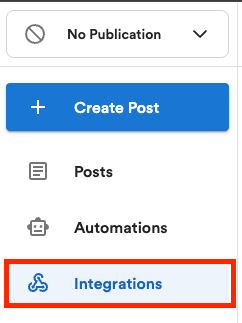
Note: If you do not see an Integrations option, be sure you have “All Post” selected on the top left drop down.
On the integrations page, find Notion option and click on the Connect button.

Enter the token you copied from Notion.
Step 2 - Connect Datasource
Go to your integrated workspace.
Open the datasource you want to connect.
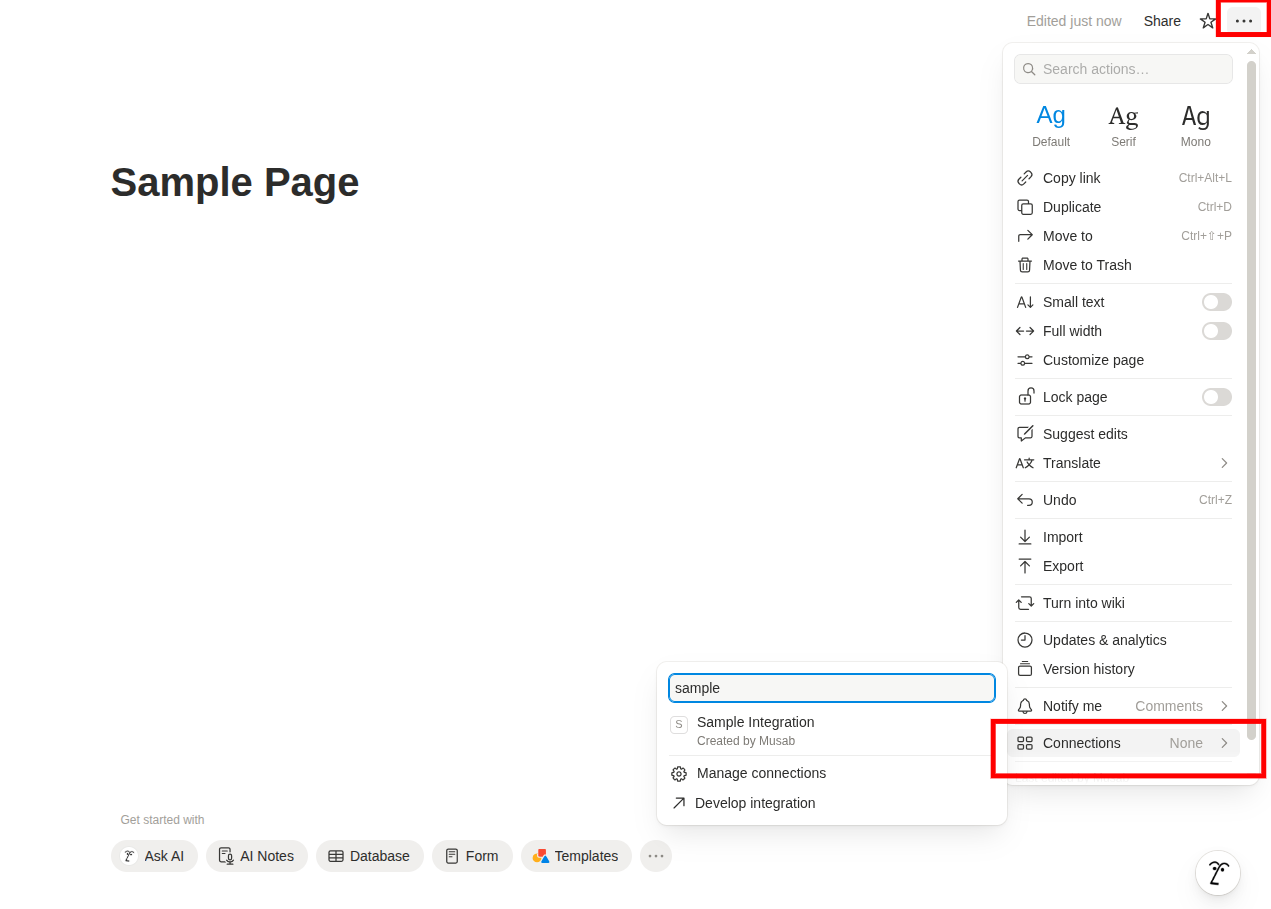
Go to Menu button → Connections.
Search for the internal integration you just added and connect it.
Step 3 - Export your Video To Blog post
In your Video To Blog account, open the post you'd like to export to Notion.
Click the Export button located at the top right.

On the "Export" dialog, select the Notion option.
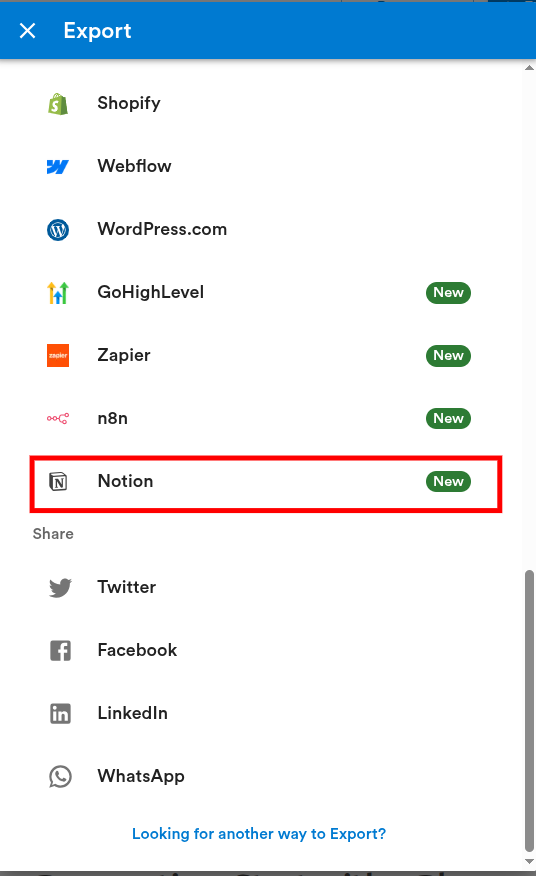
Select the required workspace and datasource.
That’s it! Your post should now be in the selected datasource.