Make
Written By Musab
Last updated 9 months ago
Integrating Video To Blog with Make allows you to export your blog post to the thousands of apps that Make supports. In this guide, we’ll use Google Docs as an example a walk through how you can export your blog posts to Google Docs via a Make integration.
Step 1 - Create Make API Key
Go to your integrations page.
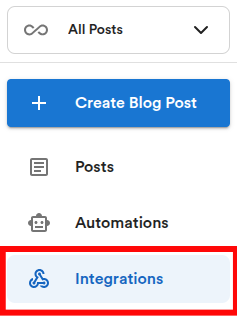
Note: If you do not see an Integrations option, be sure you have “All Posts” selected on the top left drop down.
On the Integrations page, find Make option and click on the Connect button. This will generate an API key that you need to copy.


Step 2 - Create a Scenario
Log into your Make account.
Create a new scenario. You will be taken to scenario canvas.

Step 3 - Set up VideoToBlog Custom App
In Apps, search for "VideoToBlog" and select it.
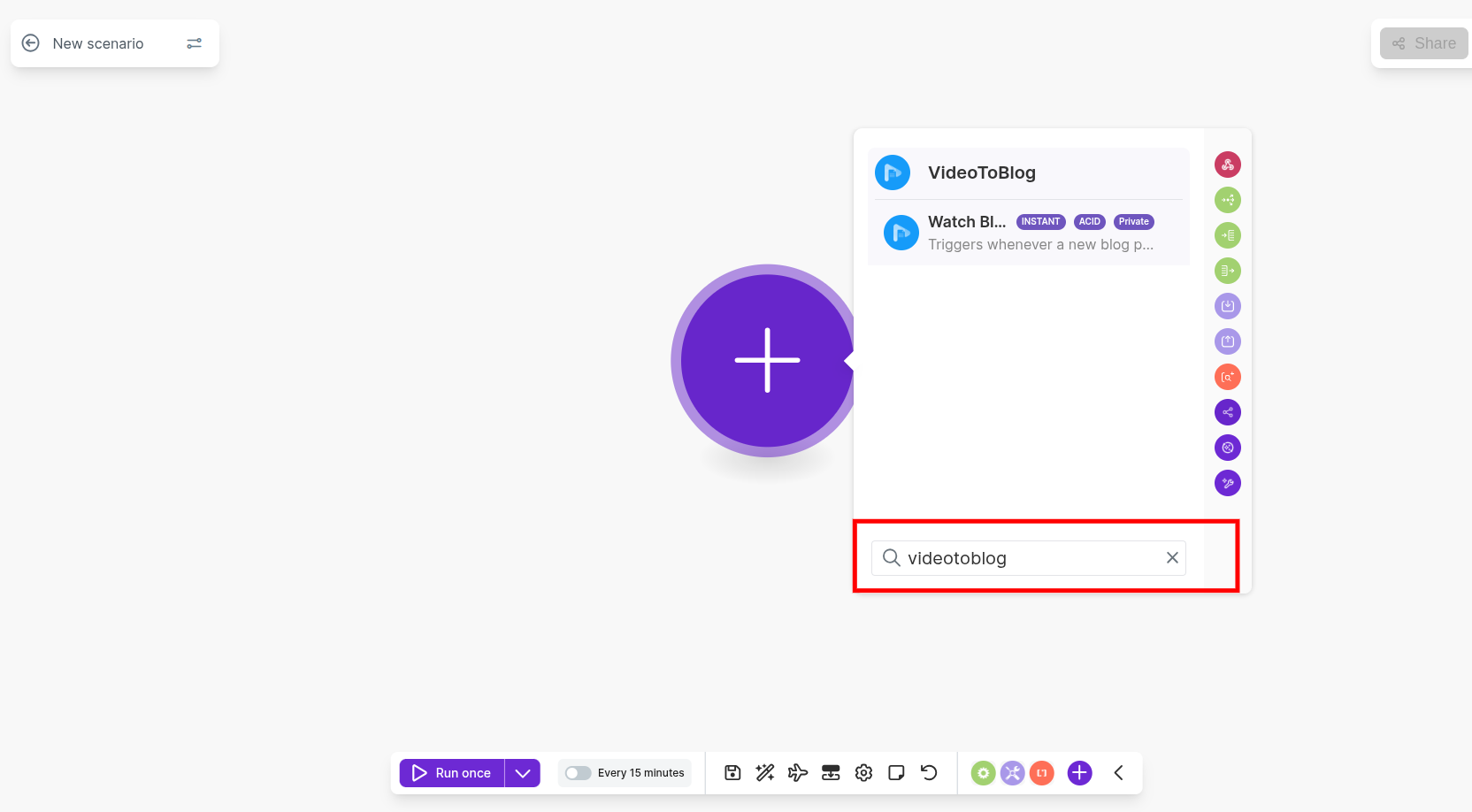
In modules, select the Watch Blog Posts.
Step 4 - Connect and Attach Webhook
Connect VideoToBlog Account
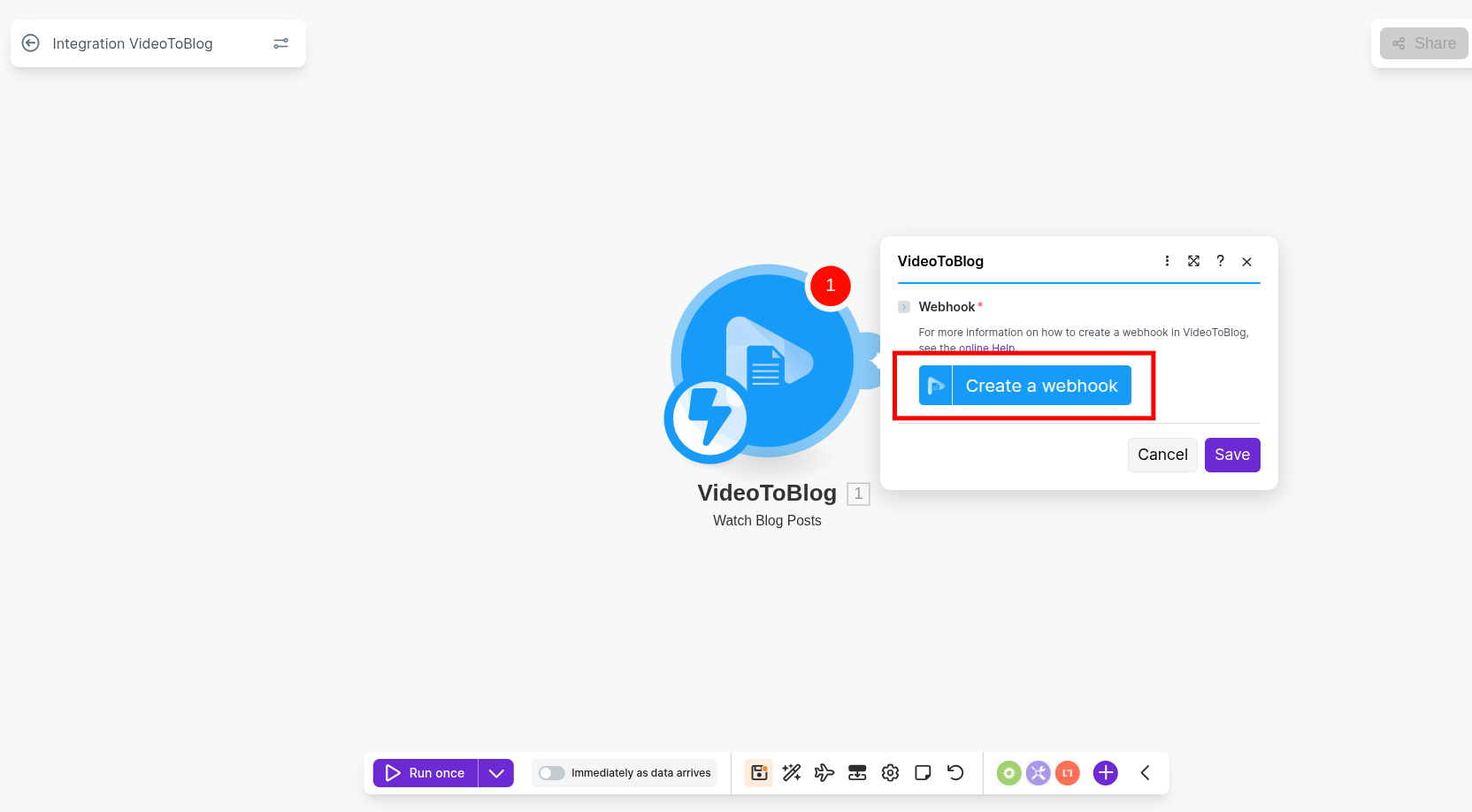
Click on Create a webhook.
Click on Create a Connection.
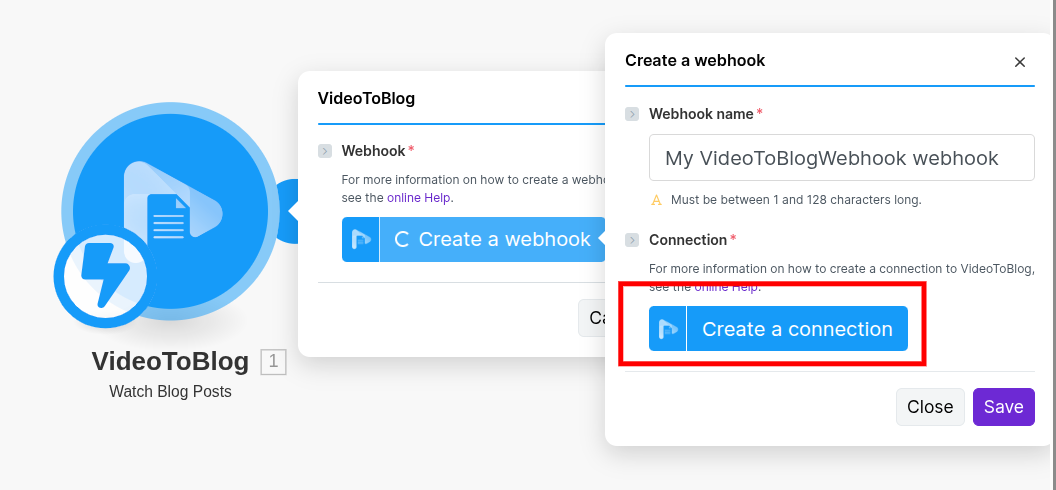
Enter a suitable unique name for your connection and enter the Make API key you copied.
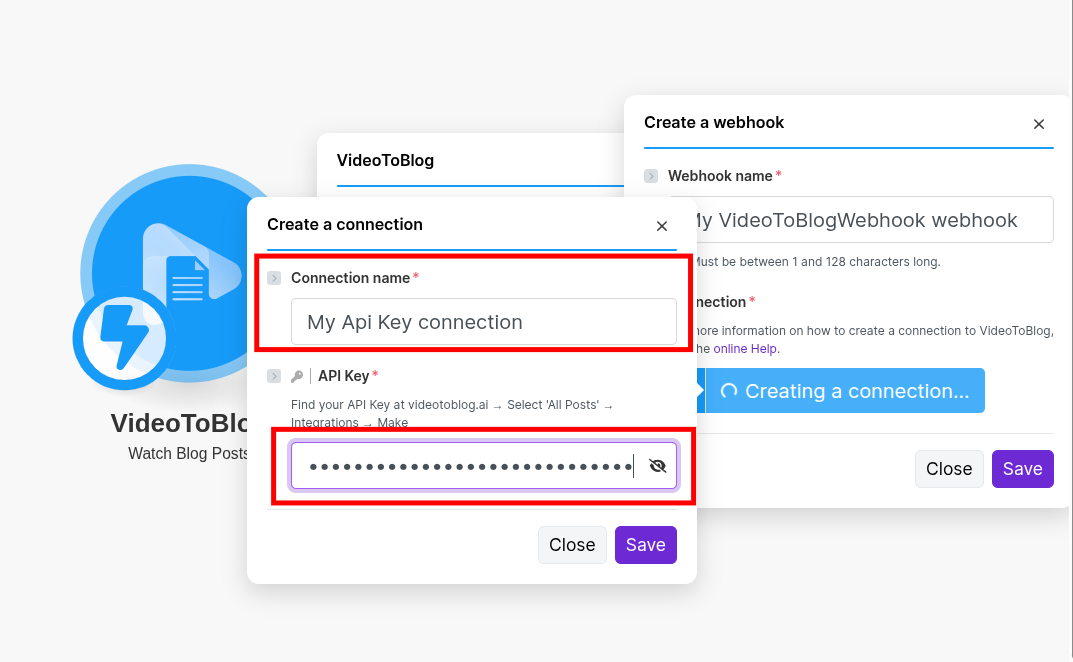
Click Save.
Attach Webhook
Enter a suitable name for your webhook.
From Connections, select the connection you just created.
Enter a suitable name to identify the publishing destination of your blog post (e.g. Uploads docs folder).
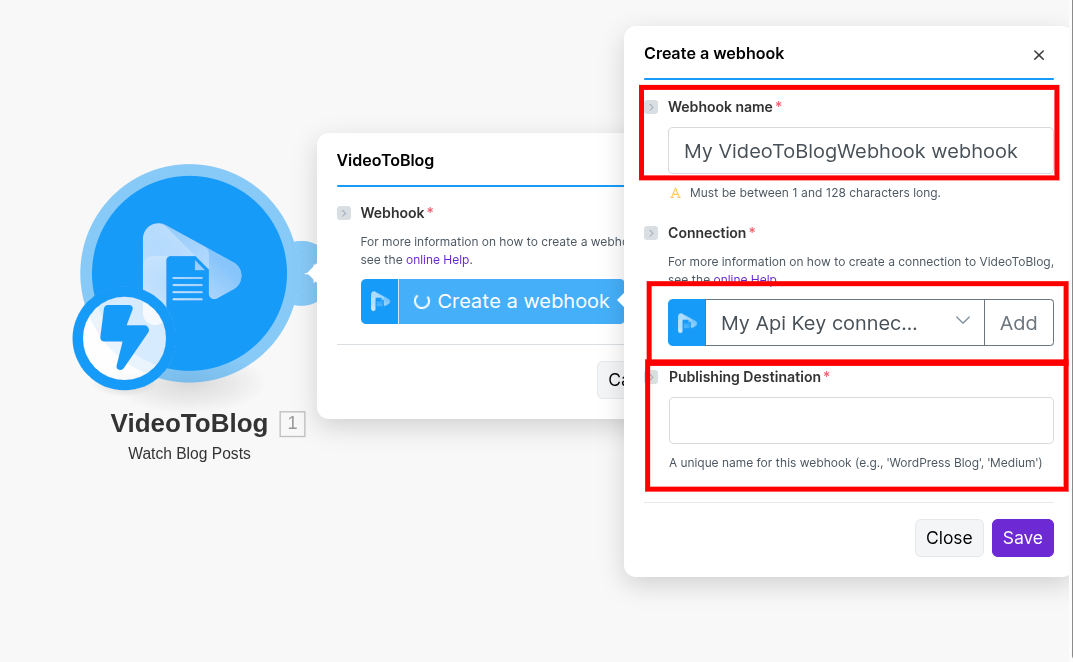
Click Save, your webhook will be attached to VideoToBlog account.
Click Save.
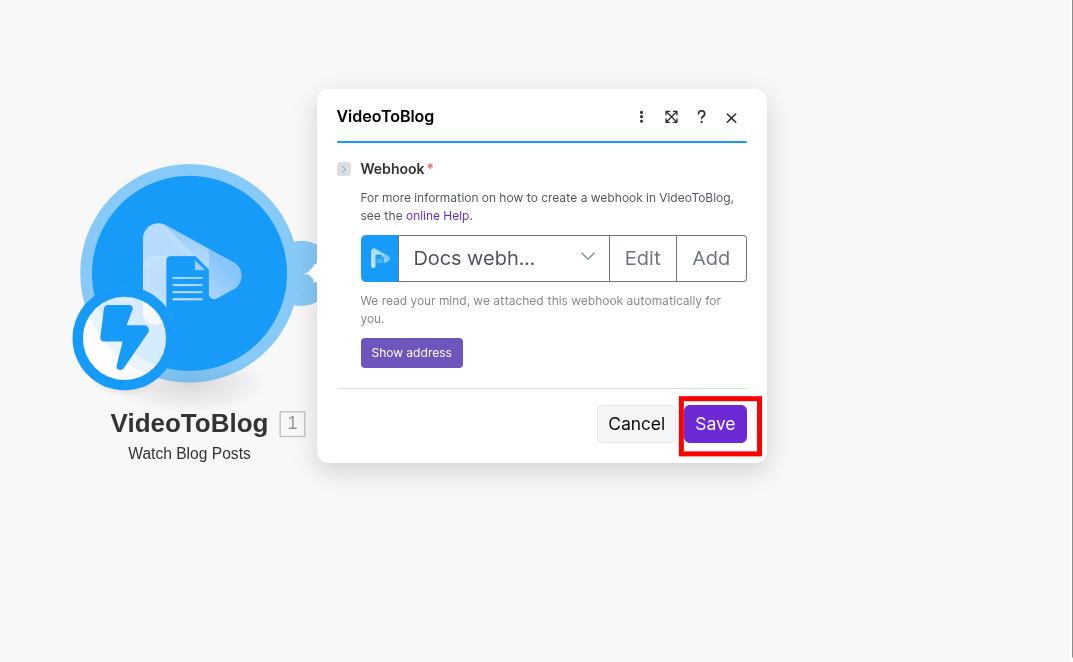
Step 5 - Set Destination app
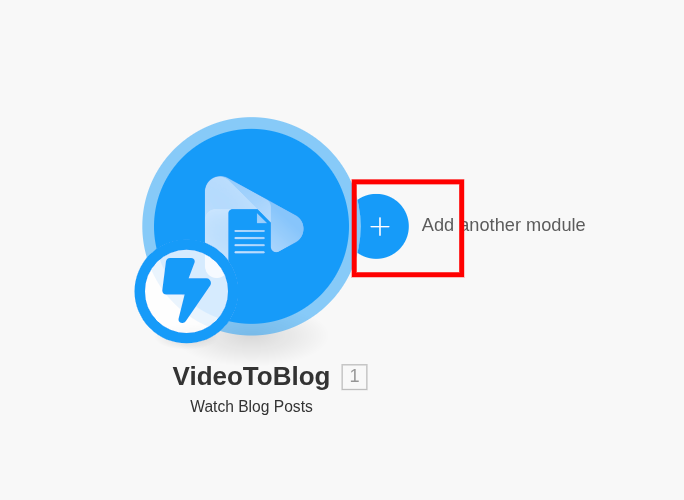
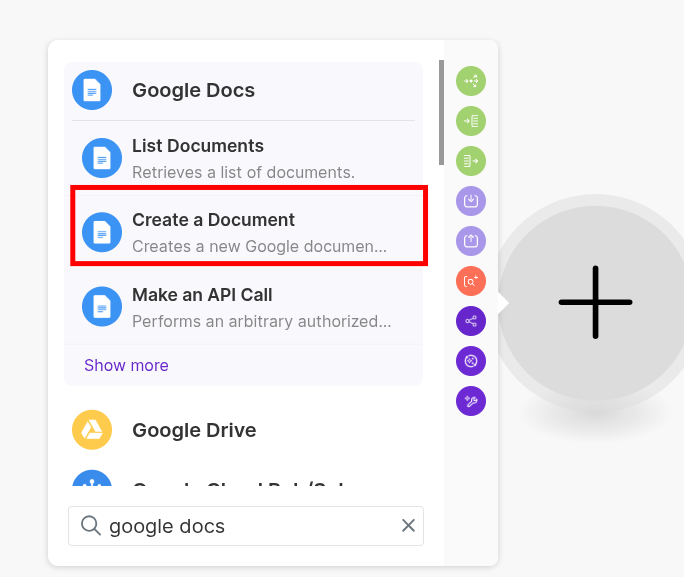
Click Add Another Module, then search for an application then select it. For the example below, we've selected "Google Docs" as an "action." Note: The specifics of the next steps will differ depending on the action you've selected, but the flow will be the same.
Sign into your Google account.
Select Create New Document as an Module.
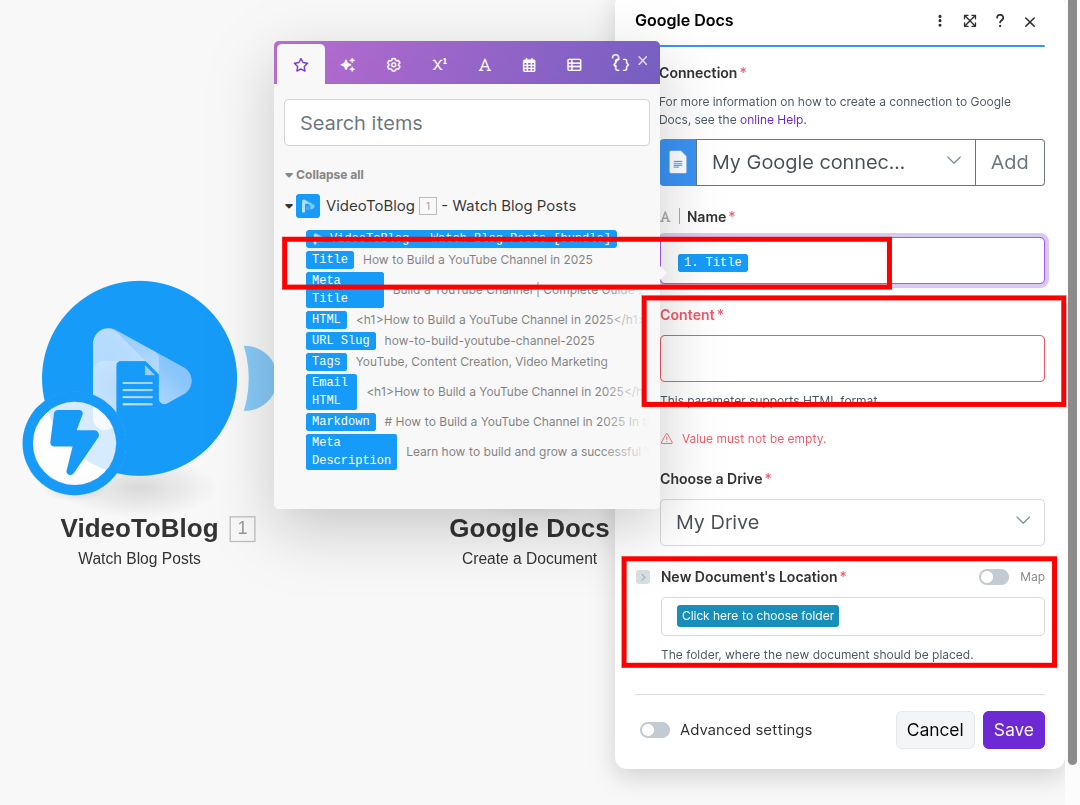
Complete the following fields by using the mapped field inputs, then click Save.
Documet Name → Title
Document Content → HTML
Google Folder - select a Google folder where you want the document to be saved.
Step 6 - Activate the Scenario
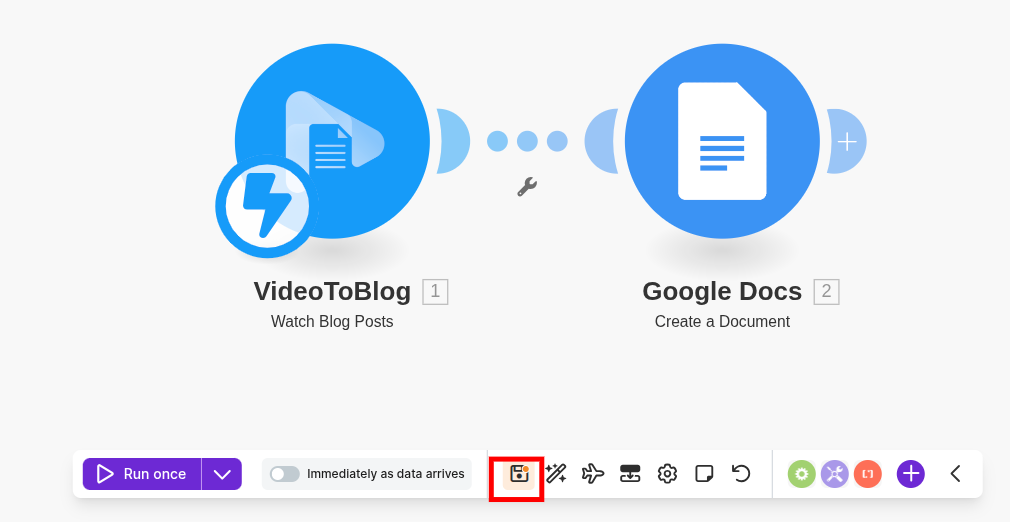
Save the scenario.
Toggle the Schedule Settings and configure:
Run Scenario → Immediately
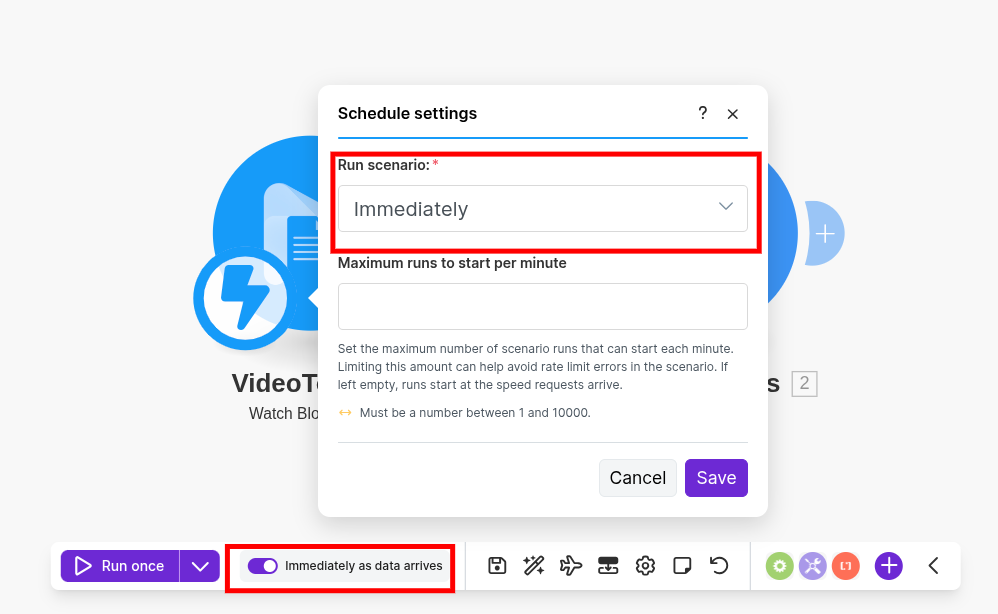
Click Save.
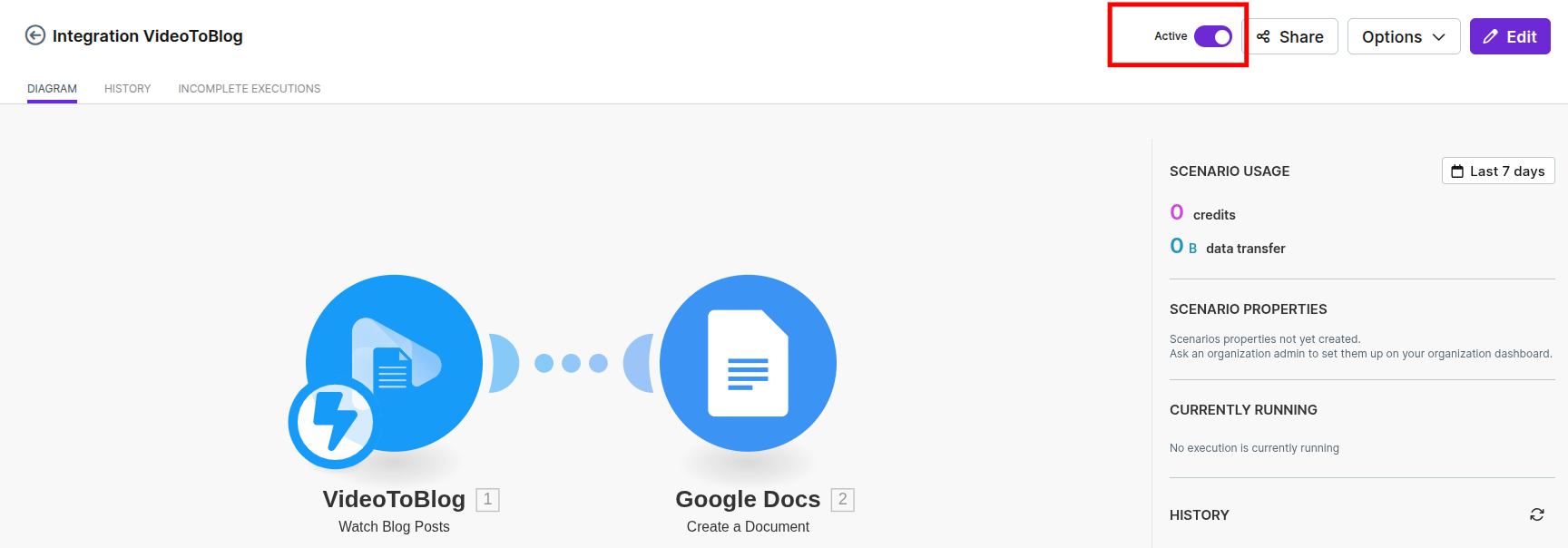
Go to Diagram.
Make sure scenario is active. If not, toggle the Active switch.
Step 7 - Publish your Video To Blog post
In your Video To Blog account, open the post you'd like to publish to Make.
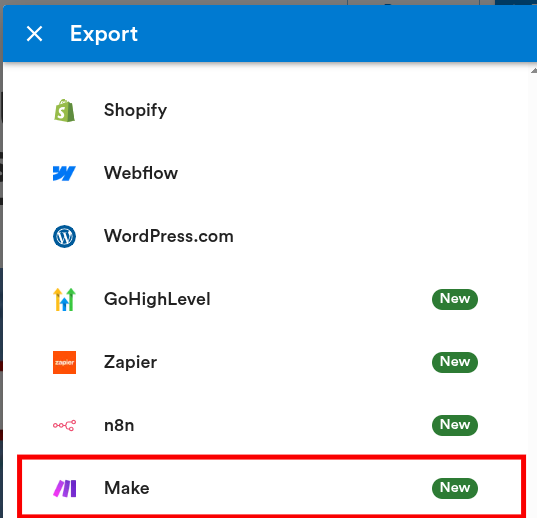
Click the Export button located at the top right.

On the "Export" dialog, select the Make option.
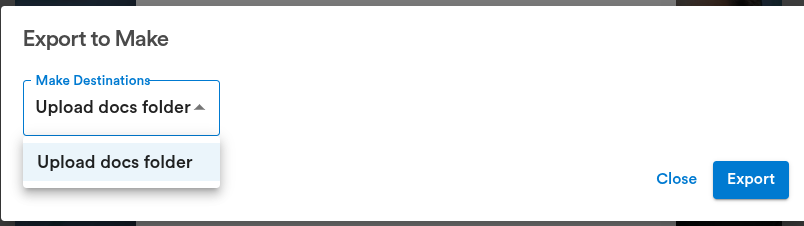
Then, select your Make destination from the drop down and click Publish.
That’s it! Your post should now be in the destination you configured in the Make trigger (in this example, Google Drive).