Generate multiple blog posts at once using one or more methods.

Method 1: YouTube Channel

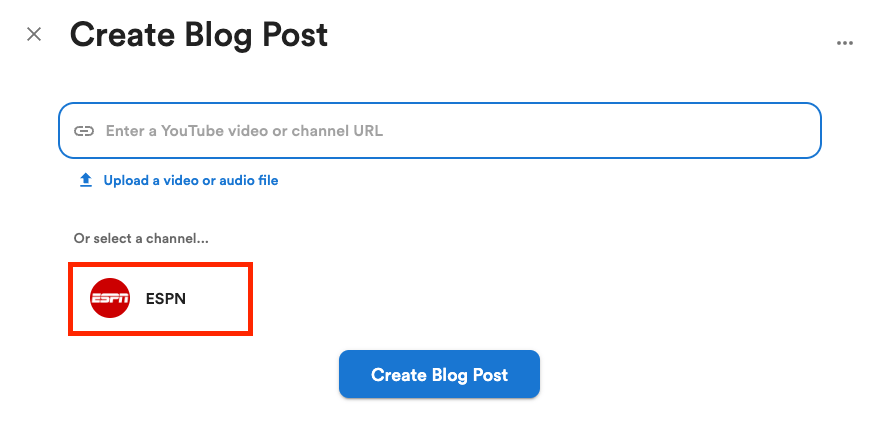
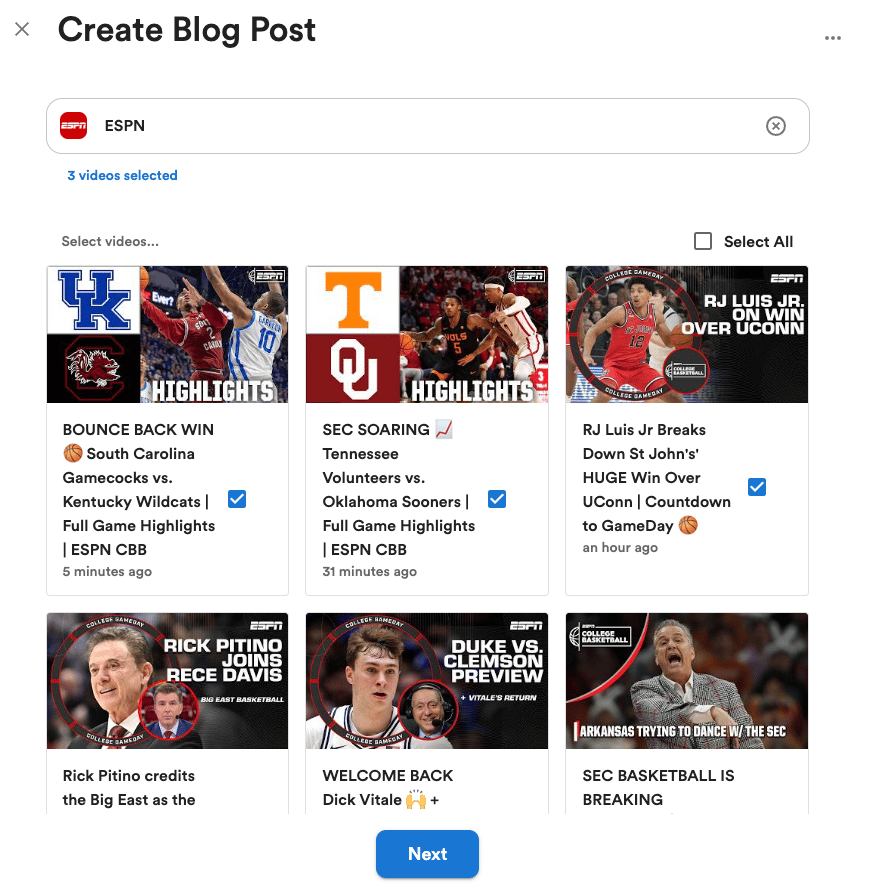
You can create multiple blog posts at once by selecting a YouTube channel from one of your YouTube channel integrations. If you don’t currently have a YouTube channel integration, you can simply paste in a YouTube channel URL into the box and it will automatically create an integration for you. Method 1: YouTube Channel in Video To Blog Next, select the videos you want to generate a blog post from and then click the “Next” button. Method 1: YouTube Channel in Video To Blog Next, specify any customization options like you would when generating a single blog post and that’s it!
Method 2: List of YouTube URLs

You can also generate multiple blog posts by inputting a list of YouTube URLs.

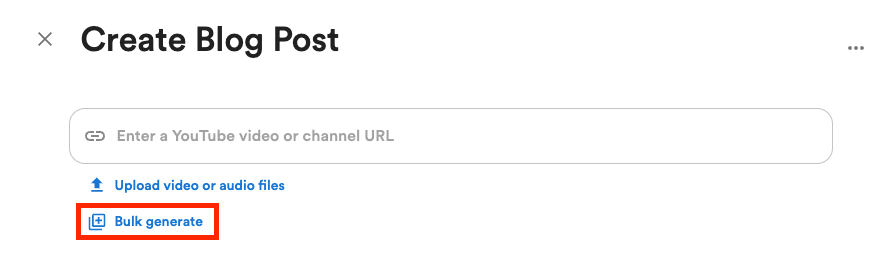
1. Click the “Bulk generate” button

1. Click the “Bulk generate” button in Video To Blog This will bring up a dialog to input a list of YouTube URLs.

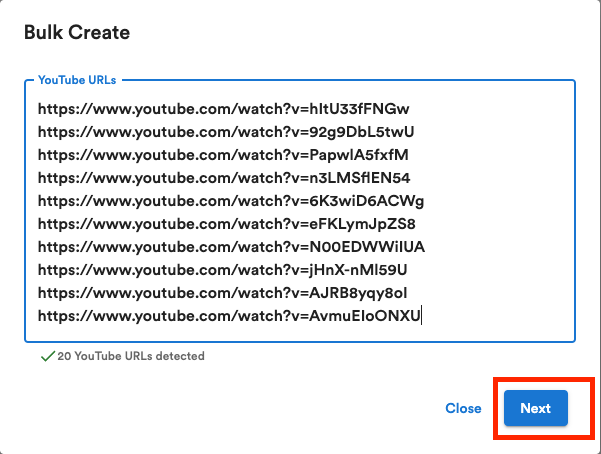
2. Input a list of YouTube URLs and click Next

Enter YouTube URLs one on each line (or comma separated). Then, click the Next button. 2. Input a list of YouTube URLs and click Next in Video To Blog Next, all of your links will be verified and information on the videos will be fetched. Depending on how many links you added, it could take a minute or two to validate them. 2. Input a list of YouTube URLs and click Next in Video To Blog
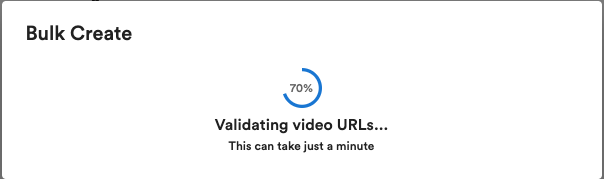
Good to know: Sometimes there are errors during URL validation. If any errors are encountered for any of the URLs, you will have the option of ignoring those URLs, trying again, or going back to edit your list.

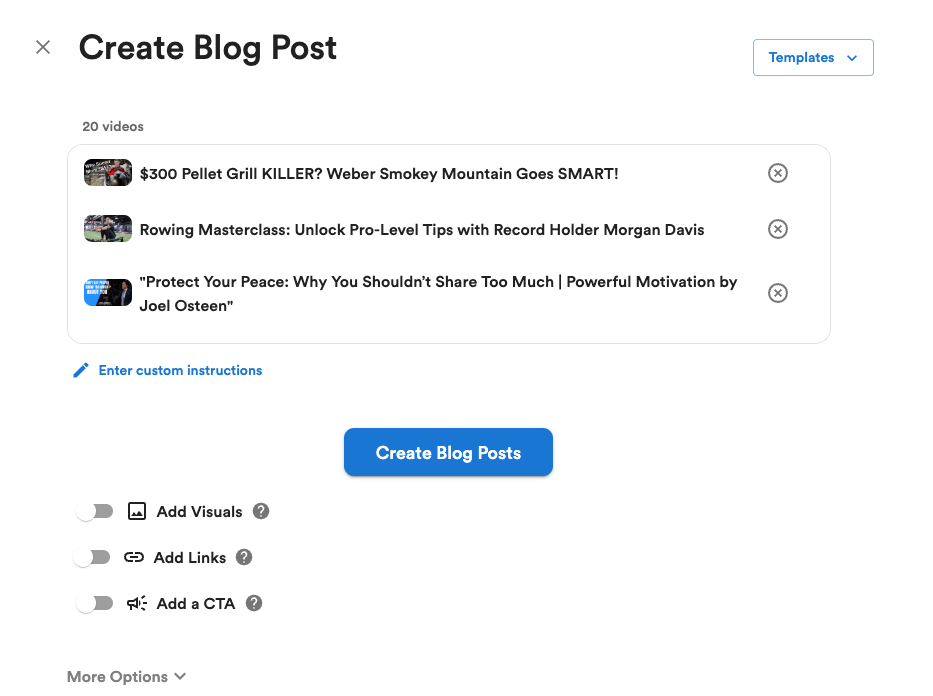
3. Create your blog posts

Once all the URLs are validated, specify any blog generation settings and click “Create Blog Posts” like you normally would. 3. Create your blog posts in Video To Blog
Method 3: Upload multiple audio or video files

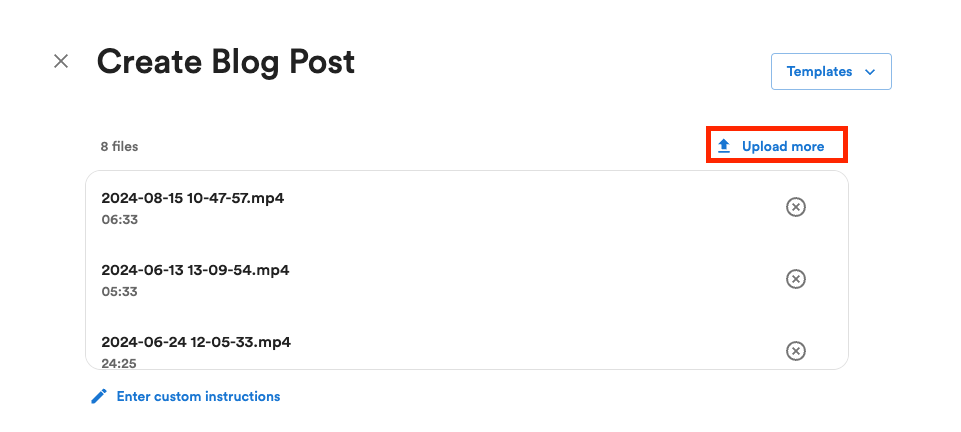
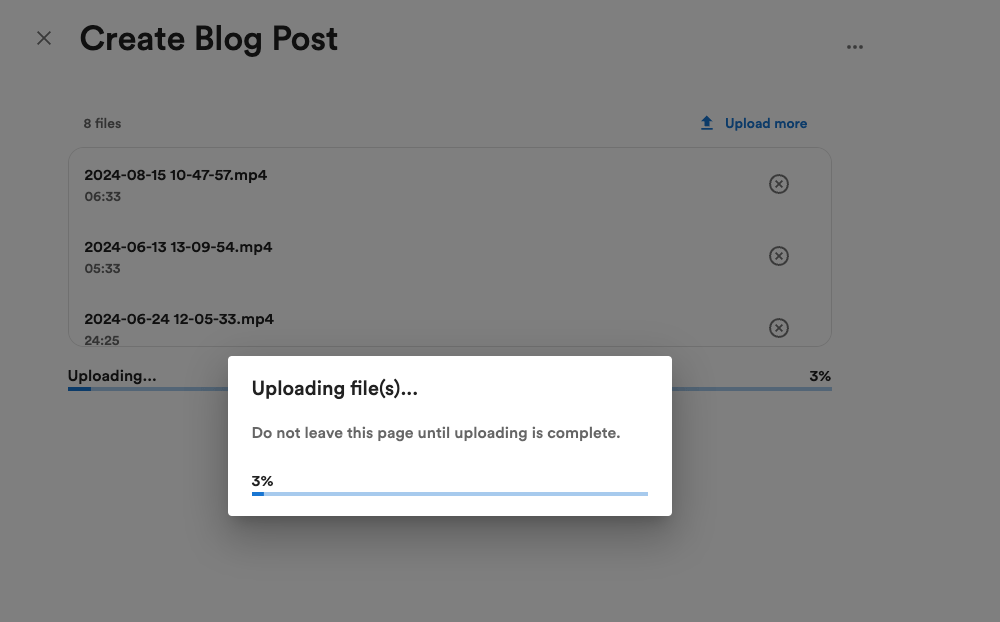
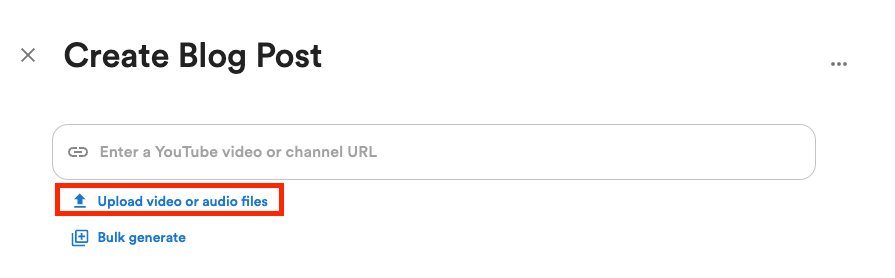
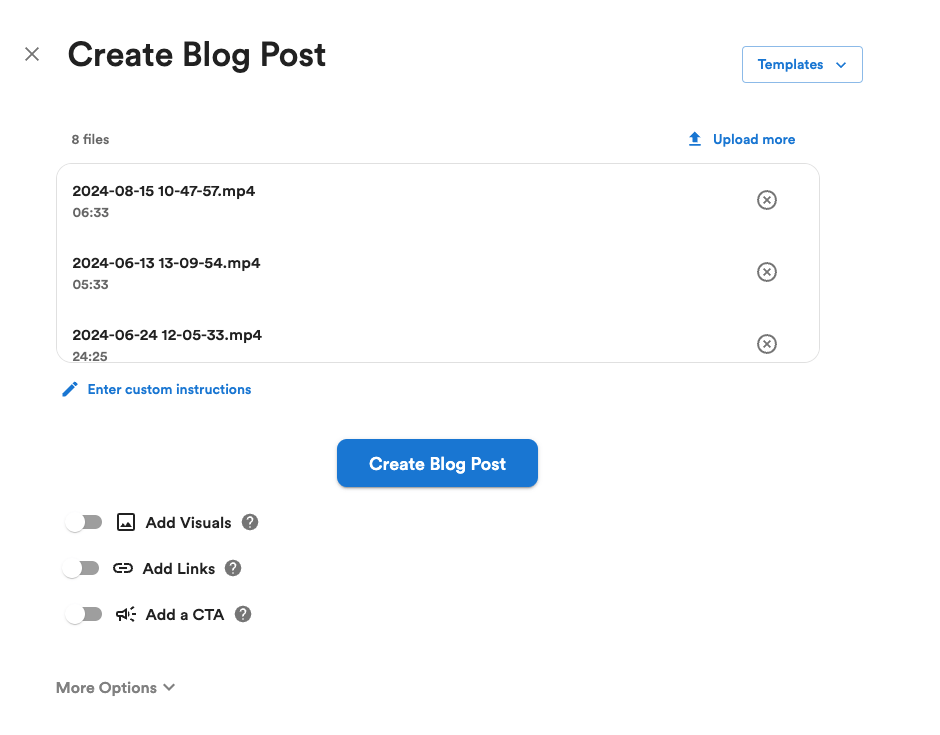
You can also bulk generate multiple blog posts by uploading multiple audio or video files at once. The process to do so is very similar to uploading just a single video or audio file. Simply click the “Upload audio or video files” button. Method 3: Upload multiple audio or video files in Video To Blog This will open a file explorer on your computer where you can select one or multiple files. After selecting your files you can proceed like normal by specifying any blog generation settings and clicking the “Create Blog Posts” button to generate your blog posts. Method 3: Upload multiple audio or video files in Video To Blog If you need to upload more files after already selecting some files, you can click the “Upload more” button as shown below. Method 3: Upload multiple audio or video files in Video To Blog Once you click “Create Blog Posts” the files will actually starting uploading. Method 3: Upload multiple audio or video files in Video To Blog
Warning: Do not close the page/tab until the files are done uploading.