Setting up email newsletters
Written By Andrew Petrovics
Last updated About 1 year ago
To enable newsletters for your publication, navigate to Settings → Email newsletter → Newsletter sending and toggle newsletter sending on.

Creating a newsletter
To create a newsletter once sending is enabled, go to Settings → Email newsletter → Newsletters. Click Add newsletter, and enter in your newsletter details.
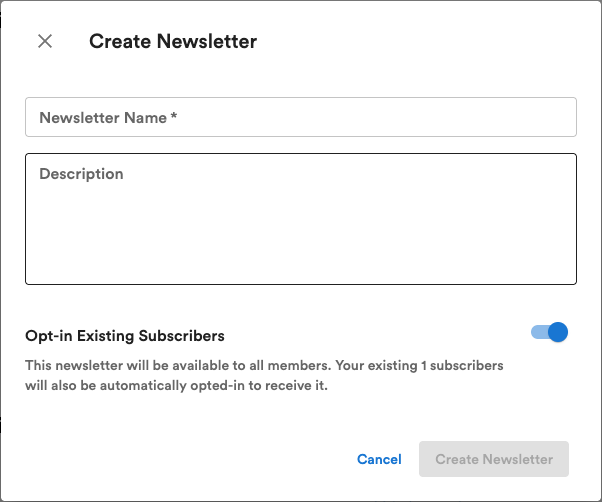
Name & description
Setting a custom name and description for your newsletter makes it easier to identify inside Video To Blog. You can also choose to display the newsletter name within your email templates.
Opt-in existing subscribers
Enable or disable whether or not existing members should be automatically added to your newsletter. When enabled, existing members will automatically be subscribed to the newsletter you create.
Using multiple newsletters
Video To Blog allows you to create more than one newsletter, each with its own subscriptions, settings and template design. This means you can give your audience the option of what email content they'd like to subscribe to.
Here are a few examples of how you might use multiple newsletters:
If you cover different topics in your content, your audience can decide which topics they’re most interested in.
If you send daily newsletters and weekly roundups, your audience can decide when they’d like to hear from you.
Give your audience the chance to subscribe to your newsletter and your podcast episode reminders, or just one.
Add a newsletter
To add an additional newsletter, click + Add newsletter
Once created, you’ll have additional options to customize your email newsletter dialog.
💡When multiple newsletters are active on your publication, new and existing members will have the option to subscribe to them individually at the time of signup, or via managing their email preferences within their account settings.
Deleting a newsletter
Deleting newsletters allows you to make any newsletter you create unavailable to members. To delete a newsletter, click the newsletter that should be deleted, then scroll to the bottom of your newsletter’s general settings, and click Delete newsletter.
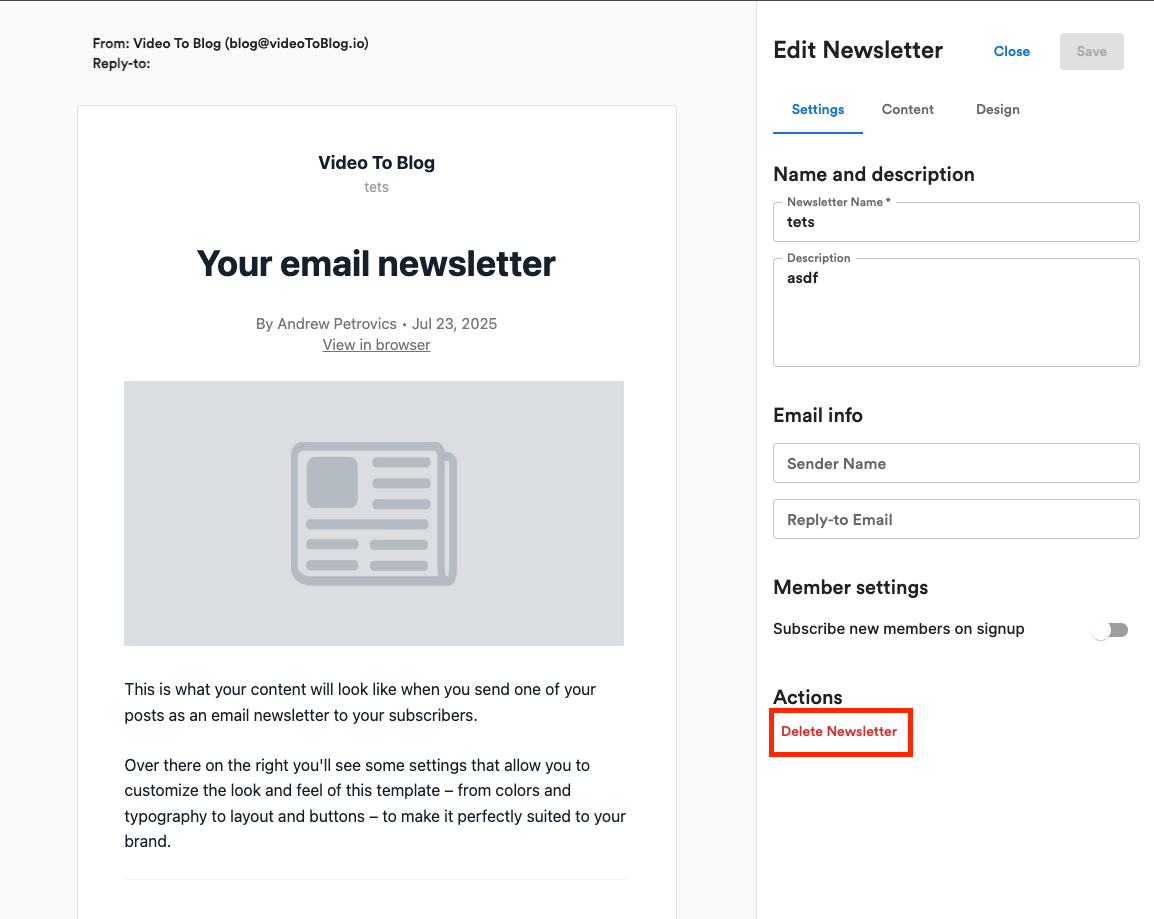
Once deleted, the newsletter will also be unavailable as an option when publishing new posts.
Once your emails are set up with the correct names and settings, it's time to set your email template design.