n8n
Written By Musab
Last updated 10 months ago
Integrating Video To Blog with n8n allows you to export your blog post to the thousands of apps that n8n supports. In this guide, we’ll use AIrtable as an example a walk-through how you can export your blog posts to AIrtable via n8n integration
Step 1 - Create a n8n API Key
Go to your integrations page
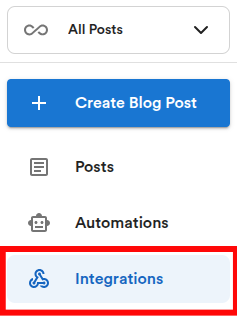
Note: If you do not see an Integrations option, be sure you have “All Post” selected on the top left drop down.
On the integrations page, find n8n option and click on the Connect button. This will generate an API key that you need to copy.


Step 2 - Create a n8n wrokflow
Log into your n8n account.

Create a new workflow.
Click on Add first Step.
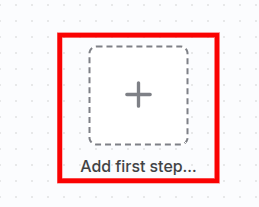
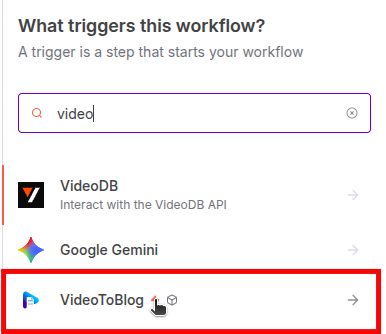
Search for “VideoToBlog” and select it. A configurations dialog will pop up.
Click on Credentials to connect with drop-down.
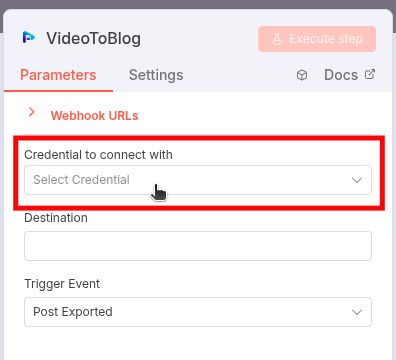
Replace the API key you copied earlier and click on Save.
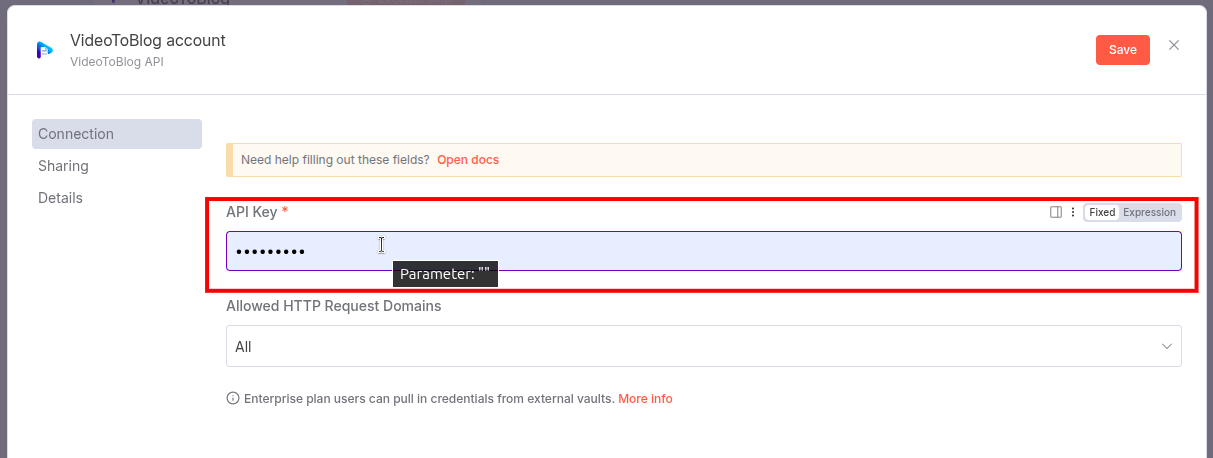
Fill out remaining fields:
Destination → Enter a suitable name to identify the publishing destination of your post (e.g. upload Airtable folder).
Trigger Event → Post Exported.
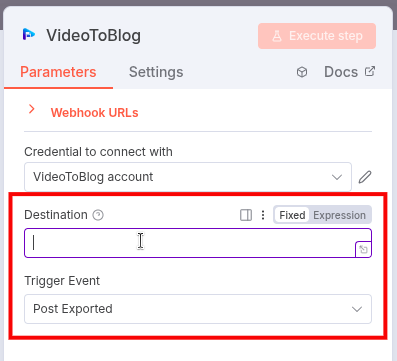
Go back to canvas.
Step 3 - Set Up Destination Node
Go to Airtable website and log in to your account.
Get access token from your Airtable account.
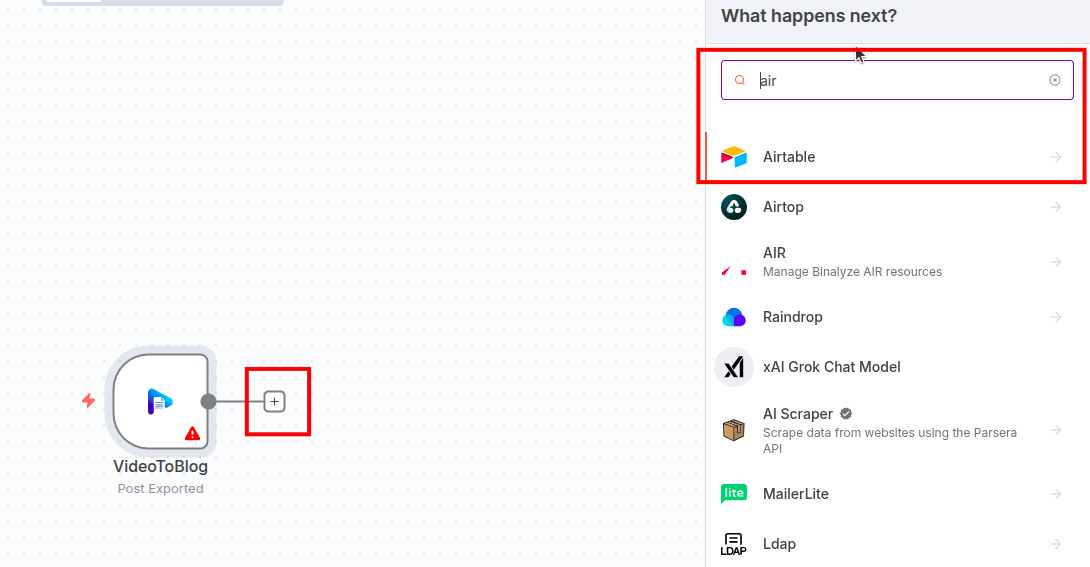
Click Add icon on VideoToBlog node, then search for a node then select it. For the example below, we've selected "Airtable" as "destination node."
Note: The specifics of the next steps will differ depending on the node you've selected, but the flow will be the same.
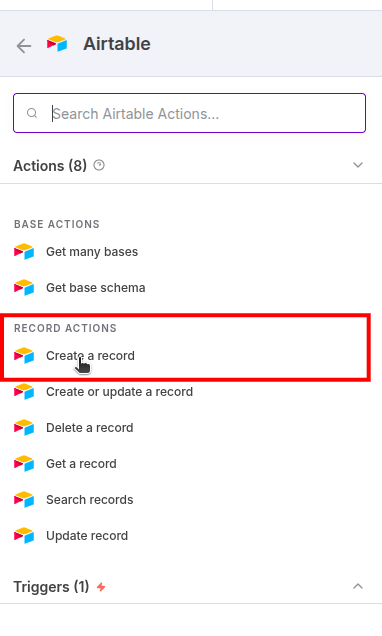
Select Create Record from Actions.
A Configuration dialog will pop up, Click on Credentials to connect with.
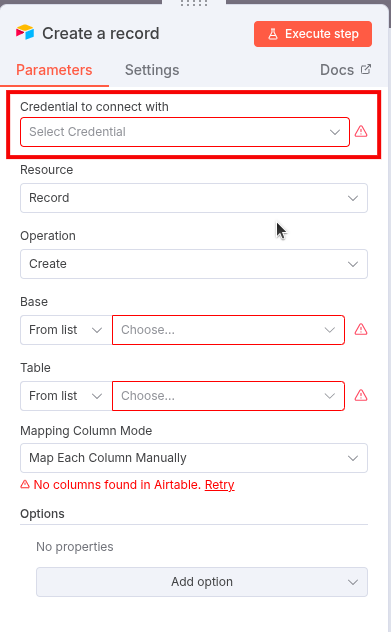
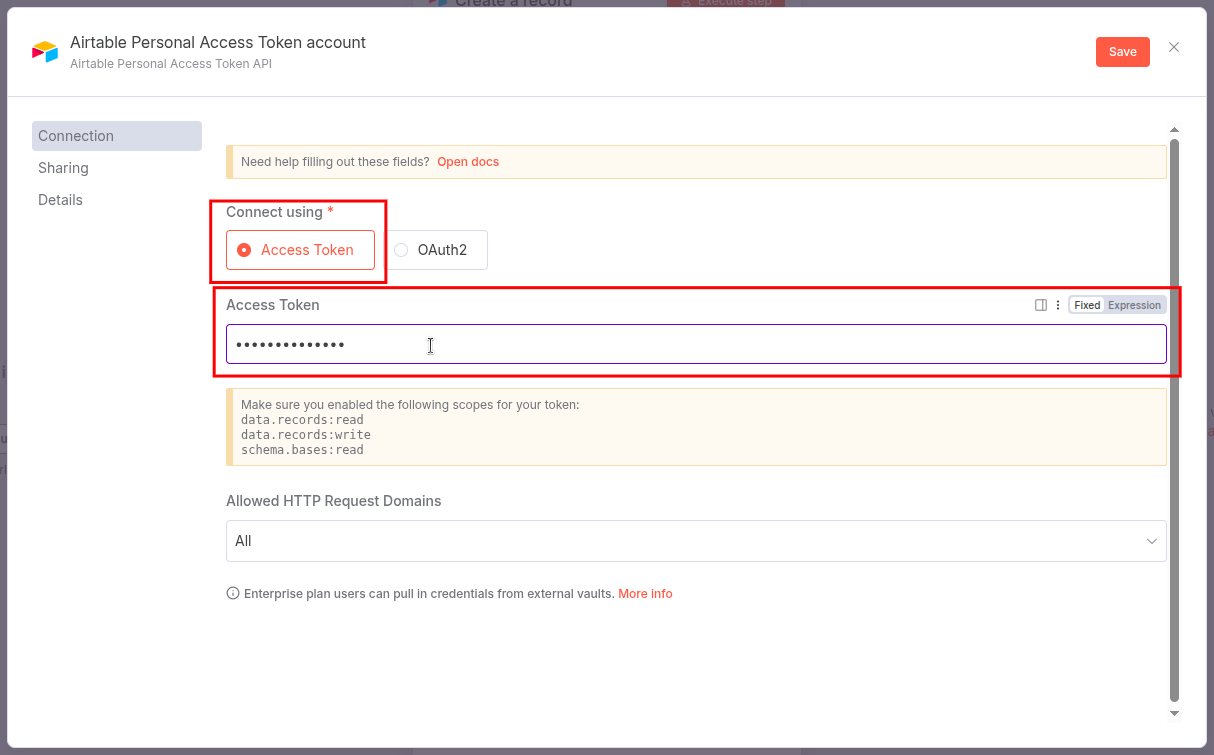
Select Access Token, paste the token copied and click Save.
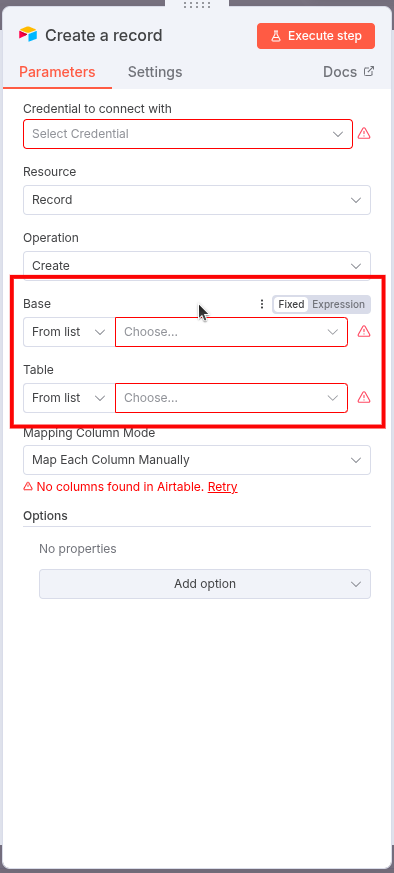
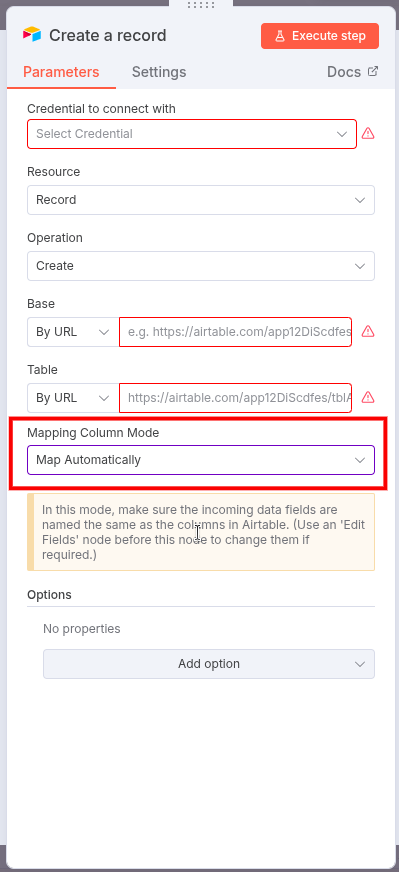
Select By URL in Base and Table drop-down.
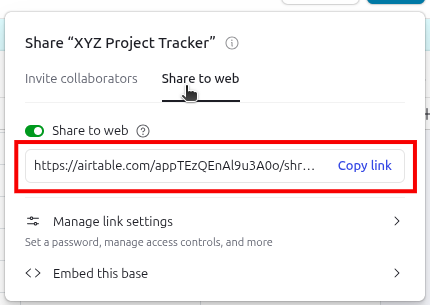
Go to the destination Base in your Airtable account and go to Share option. Copy the link and paste in node’s configurations.
Open the destination Table in your account. Copy the URL from browser and paste in nodes’s configurations.
Select Map Automatically. Go back to canvas.
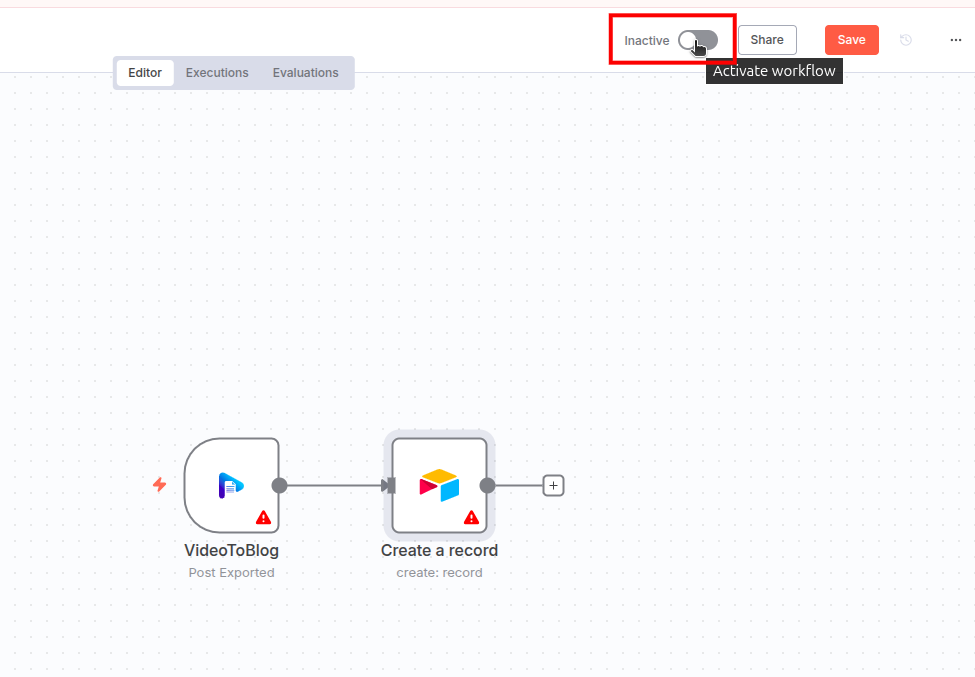
Toggle the Inactive switch to activate your workflow.
Now, go to your “Video To Blog” account ad export any blog post.
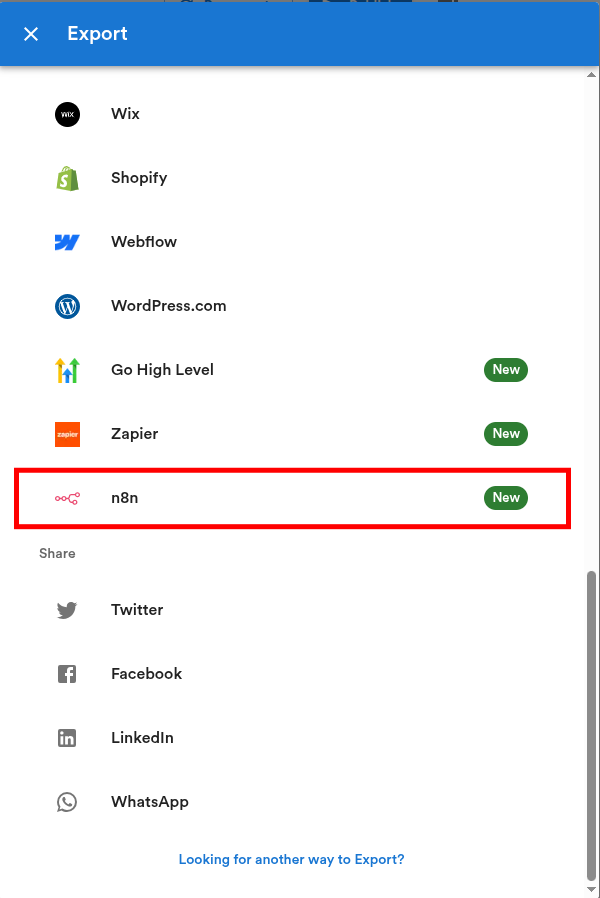
Then, select your n8n destination from the drop down and click Export.
That’s it! Your post should now be in the destination you configured in the n8n workflow (in this example, Airtable).